The Training Matrix
How to Add/Remove a Course to/from the Training Matrix
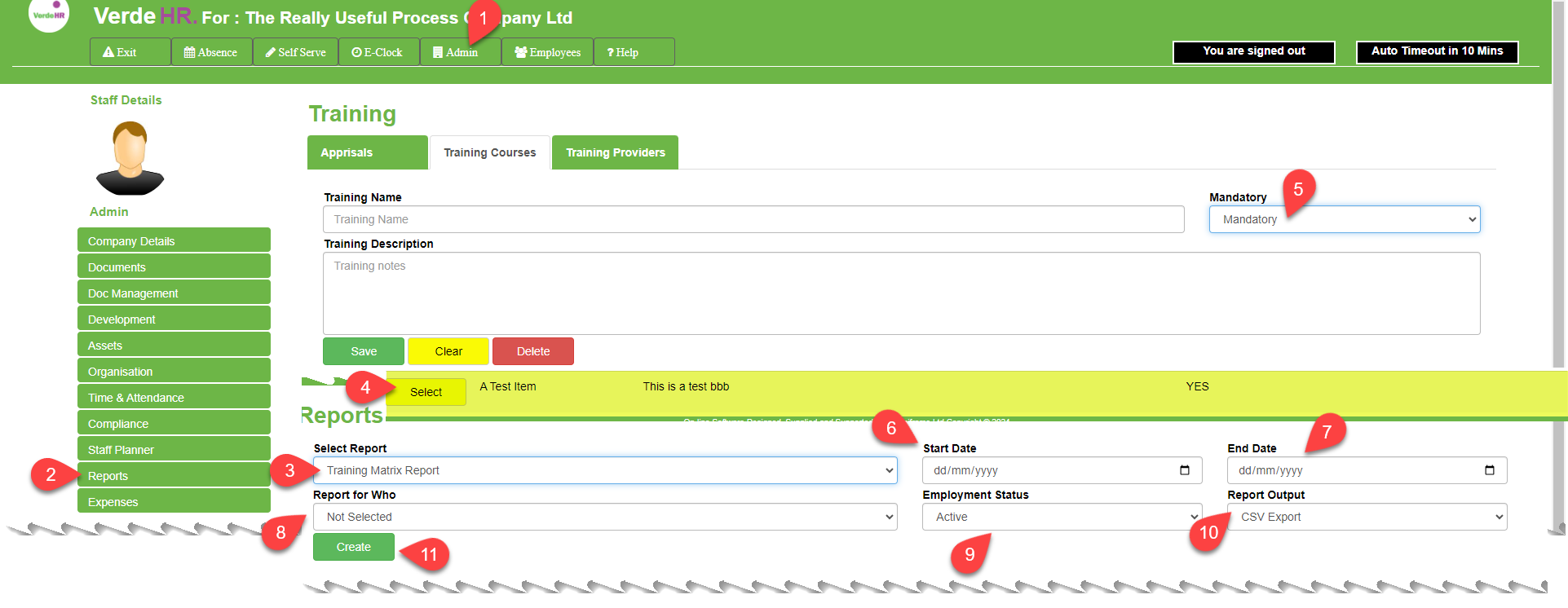
You can add training courses to the training matrix by either creating a new course and selecting Mandatory from the dropdown menu in the “Mandatory” box . You can edit courses by selecting them from existing Training Course select the category from the list (See the highlighted section in yellow in the screenshot below) and select the “Select” button (See 4 in the screenshot below). To add or remove from the Training Matrix You select Mandatory in the drop down menus in the “Mandatory” box (See 5 in the screenshot below), this will set Mandatory to “ Yes” in the listing, which will mean it will be added to the Training Matrix. If you select Not Mandatory in the drop down menu in the “Mandatory” box (See 5 in the screenshot below), this will set Mandatory to “No” in the listing, which will mean it will not be included in the Training Matrix.
How to Generate a Training Matrix Report
To run an Training Matrix Report follow the steps below:
- Select Training Matrix Report from the dropdown list in Select Report (see 3 on the screenshot below)
- Select the Date Range by specifying the Start Date in the Start Date Box and the End Date in the End Date Box (see 6 and 7 on the screenshot below)
- If you want to select a particular employee to report on select that employee’s name from the drop down menu in the Report for Who Box (see 8 on the screenshot below)
To produce a report press the green Create button (see 11 on the screenshot below).
Screen Shot