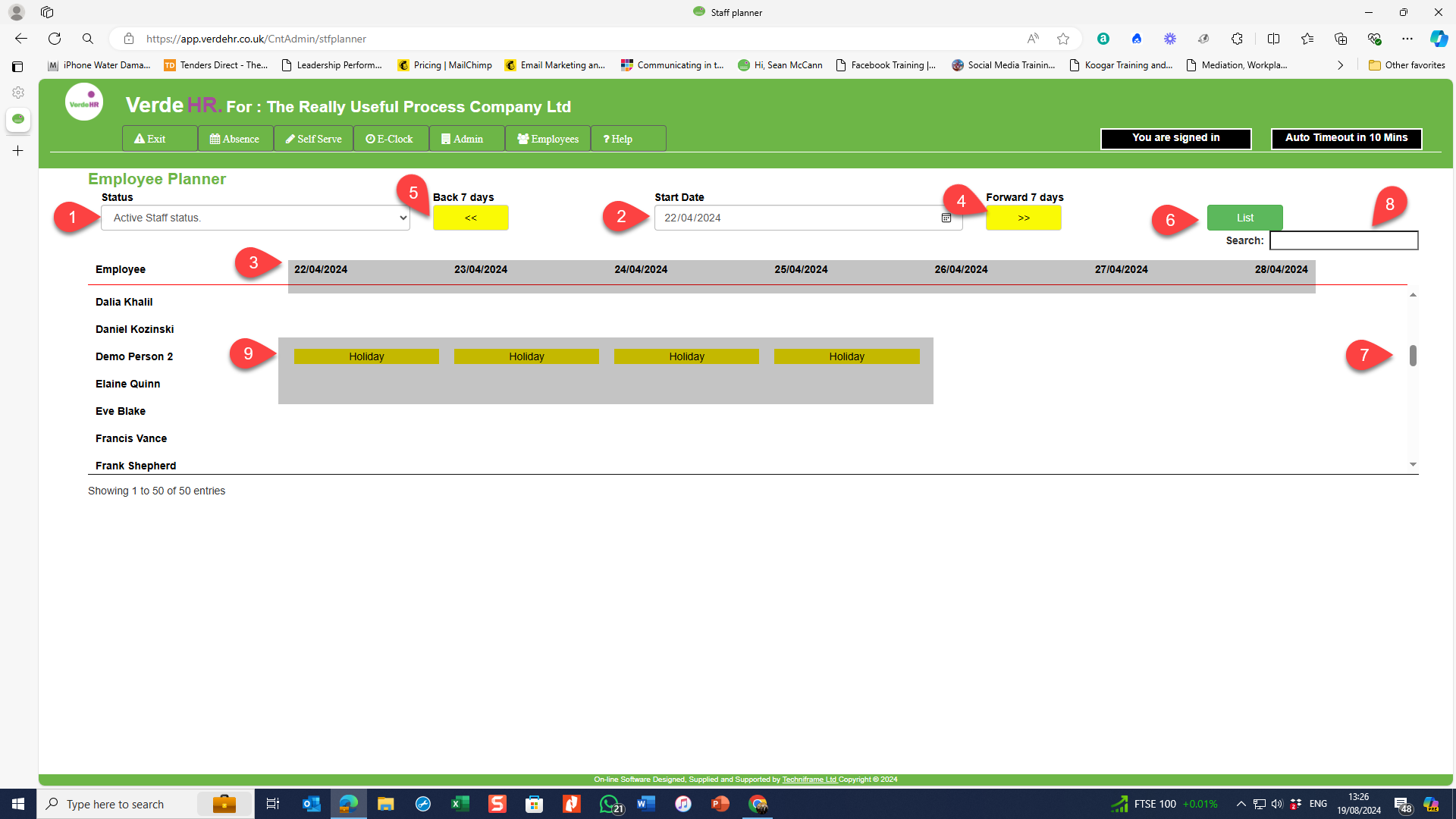
In Verde HR you can use the Staff Planner to see at a glance which staff are absent duriing a particular period. E.G. if a person requests leave you can go to the staff planner and see who is absent during that time, it will include any approved holidays, any current or planned sickness or other absences e.g a Dr.’s appointment, Jury Duty, etc. You can access the staff planner by selecting Staff Planner on the Admin side menu.
The Staff planner allows you to view 7 days of employee attendance and to scross forwards an back wards through the dates and up and down the list of employees.
How to Use the Staff Planner
- Select the categories of staff you want to view from the Status drop down menu (see 1 on the screenshot below) You can chosse Active i.e. all active employees (the default option), Leavers, Pending (this is people who haven’t yet joined the company but are scheduled to do so), All.
- Select the First date of the period you want to review (see 2 on the screenshot below)
You can input a date by either using the calendar or typing it in using the format dd/mm/yyyy.
- This will create a 7 day view (see highlighted area 3 on the screenshot below)
- You can move the view forward 7 days by clicking “Forward 7 days” (see 4 on the screenshot below) or you can move the view back 7 days by clicking “back 7 days” (see 5 on the screenshot below)
- Press List (see 6 on the screenshot below) this will produce a list and the days where employees have planned absences,sicknesss or approved annual leave will be highlighted.
The planner will only give accurate information if all holidays and absences are manged via Verde HR.
- You can scroll down the list using the scroll bar (see 7 on the screenshot below) orIf the list is longer than your screen if you scroll down the dates at the top of the list are locked so you will not lose tha dates.
- You can select an individual employee by typing their name into the search bar (see 8 on the screenshot below).
To create a new list just follow the steps outlined above
Below (see 9 on the screenshot ) is an example where a booked holiday is highlighted against the employee’s calendar on the planner.
Screen Shot
If you want to increase the size of this image, click on “Open image in new tab”. Or use “pinch” if viewing on a phone or tablet.