Creating Employee Permissions in Access Settings

You are here:
Estimated reading time: 3 min
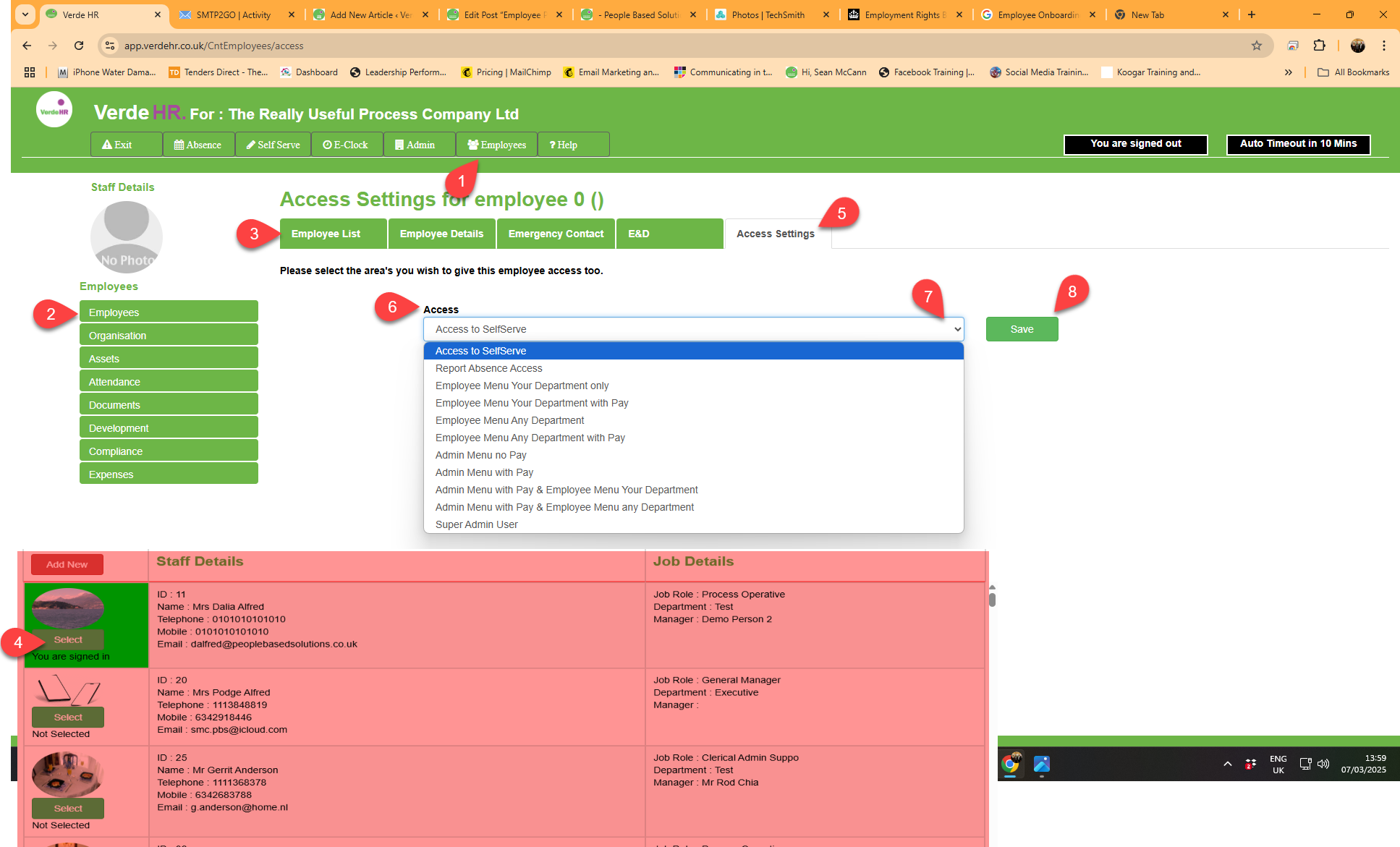
You can set or change a user’s access  settings, i.e. what records the user can see, create or amend in Verde HR. To set or change a user’s access settings in Verde HR, log on to the software. Self-Serve opens automatically in My Holidays; Click on Employees (see 1 on the screenshot below) in the Top Menu, then select Employees (see 2 on the screenshot below) from the side menu this will open a new menu below the top menu, select Employee List (see 3 on the screenshot below) from that menu

How to change Access Setting

When a new employee record is created it defaults to “Self Serve”
  • Select the record you wish to amend from the employee list in Employees/Employees/Employee List and press the Green Select (see 4 on the highlighted section of the screenshot below) Button
  • When the record is open select Access Settings from the top sub menu (see 5 on the screenshot below)
  • In access (see 6 on the screenshot below) click on the down arrow (see 7 on the screenshot below) to select the required access settings for that user
    there are 11 options to choose from
Option 1 “Self Serve” this is the default option and gives the employee access to their own record
Option 2 “Report Absence Access” this allows employees to assign sick leave against an employees record, but doesn’t allow the employee to view or amend that record. Only users with some level of admin privilege can do that.

Option 3 “Employee Menu Your Department Only” This allows the user to view and amend the records of anyone in their department and make transactional changes such as approve leave, assign absences and approve timesheets
Users with this permission cannot view pay information for members of their department with this permission.

Option 4“Employee Menu Your Department with Pay” This allows the user to view and amend the records of anyone in their department and make transactional changes such as approve leave, assign absences and approve timesheets. This level of access gives the user access to pay information for members of  their department.
with “Employee Menu Your Department Only” and “Employee Menu Your Department with Pay” users can assign things such as job titles, absence categories and if they have pay permissions pay rates  created in Admin, but they cannot create or amend those categories, as they do not have Admin privileges.

Option 5 “Employee Menu Any Department ” This allows the user to view and amend all  records and make transactional changes such as approve leave, assign absences and approve timesheets
Users with this permission cannot view pay information .

Option 6 “Employee Menu with Pay” This allows the user to view and amend all records and make transactional changes such as approve leave, assign absences and approve timesheets. This level of access gives the user access to pay information.
with “Employee Menu Any Department” and “Employee Menu  with Pay” users can assign things such as job titles, absence categories and if they have pay permissions pay rates  created in Admin, but they cannot create or amend those categories, as they do not have Admin privileges.

Option 7 “Admin Menu No Pay” users with this permission can create system categories such as absence types, Compliance Events, Assign Vehicles and other assets to the system, but they can not view any records other than their own self serve record. 
 
Users with this permission cannot view pay information .

Option 8 “Admin Menu with Pay” users with this permission can create system categories such as absence types, Compliance Events, Assign Vehicles and other assets to the system. They can also create pay rates, Overtime Rates and allowances.  However, they can not view any records other than their own self serve record. 
Option 9 “Admin Menu with Pay and Employee Menu Your Department” users with this permission can view, create, amend or delete any record for any  user is in their department, other than a user who has “Super Admin User” permissions They have full Admin privileges other than to assign permissions higher than their own.
Option 10 “Admin Menu with Pay and Employee Menu Any Department” users with this permission can view, create, amend or delete any record other than a user who has “Super Admin User” permissions.  They have full Admin privileges other than to assign permissions higher than their own. 
Option 11 “Super Admin User” users with this permission can view, create, amend or delete any record  They have full Admin privileges. 
  • When you have selected the access level you want for that user click on the green Save button (see 8 on the screenshot below)
    When amend an employee record, you must click on Save to save your update otherwise the amendments will be lost when you move to a new page.
You assign access permissions to a user in the employee section. There is no facility to amend, add to or reduce the 11 access permissions categories in admin as the access permissions are hard coded and cannot be amended or changed.

Screen Shot

If you want to increase the size of either of the images, click on “Open image in new tab”. Or use “pinch” if viewing on a phone or tablet.

Was this article helpful?
Dislike 0
Views: 10