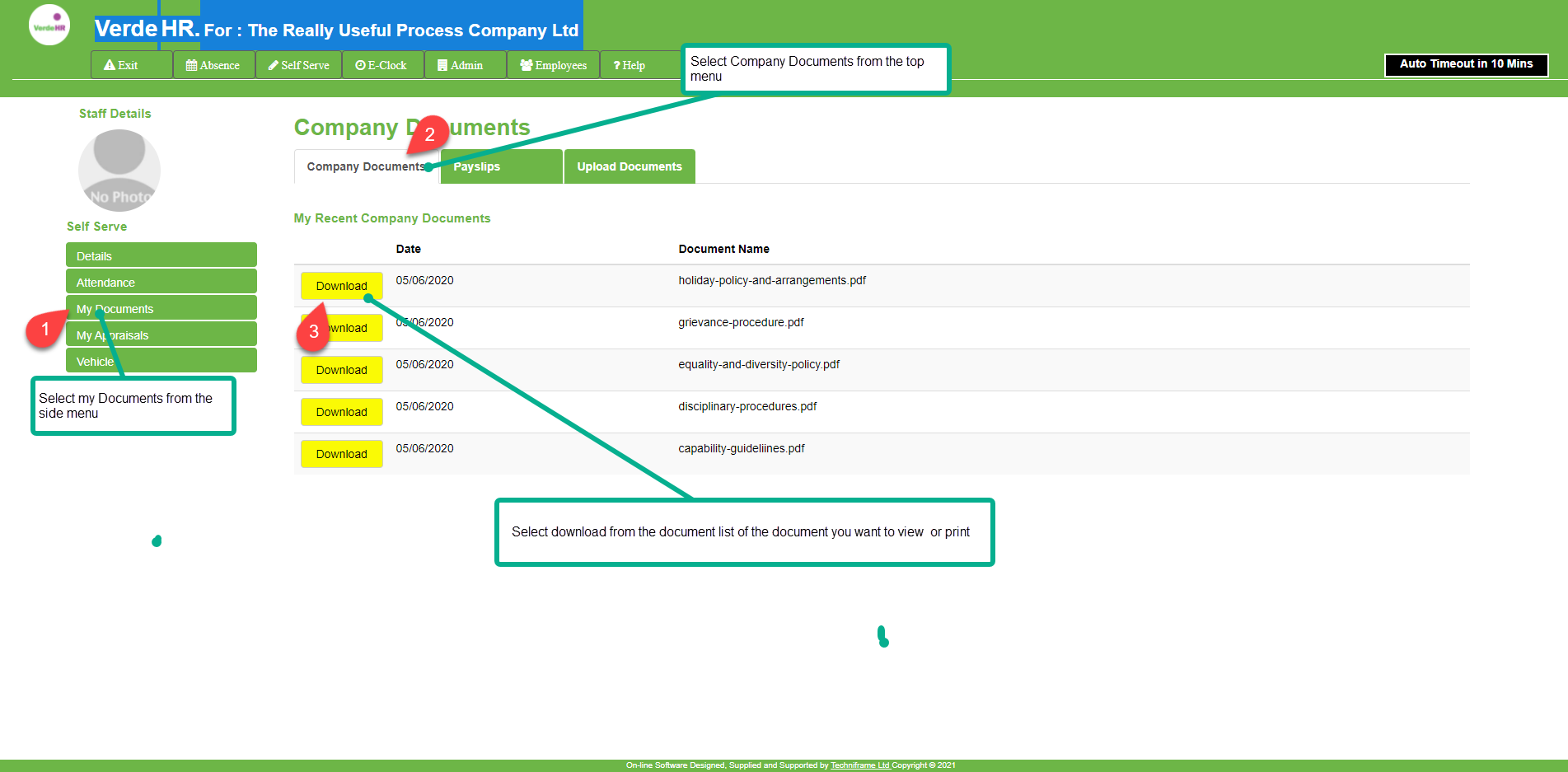
You can view and download shared company documents such as policies, procedures, etc. via the Company Documents feature in the Self-Serve module. To view Company Documents, log on to the software. Self-Serve opens automatically in My Holidays; Click on the My Documents in the side menu, then select Company Documents in the top menu.
Company Documents
- To access and view Company Documents in self serve:
- Select My Documents from the side menu (see 1 on the screenshot below)
- Select Company Documents from the top menu (see 2 on the screenshot below)
- Hover over and click the yellow “Download” button of the the document you want to download from the My Recent Company Documents list. (see 3 on the screenshot bel.
- The selected document will be downloaded for you to view or print.
N.B. The Self-Serve access user cannot delete or upload any company shared document on the Company Documents page. Only users with Administration access can upload these files for staff members.
Screen Shot
If you want to increase the size of this image, click on “Open image in new tab”. Or use “pinch” if viewing on a phone or tablet.