How to Assign an Allowance to an Employee
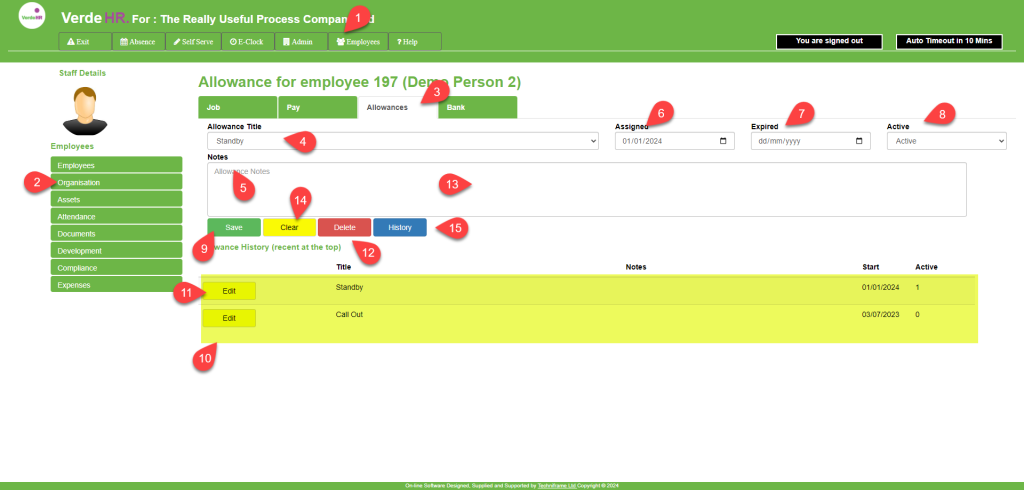
Select the Allowance you are going to assign to the employee from the dropdown list in the Allowance Title field (see 4 on the screenshot below). N.B. Allowances must be created in Admin before they can be assigned to an employee
Optional, you can add notes about the allowance in the notes field (see 5 on the screenshot below).
Select the date the Allowance was assigned from the calendar in the Date/Time Assigned field (see 6 on the screenshot below). Set the Allowance as “Active” from the dropdown menu in the Active box (see 8 on the screenshot below).
You can set an end date for allowance to an employee by populating the Expired field with the appropriate date (see 7 on the screenshot below)
Click on Save (see 9 on the screenshot below) to save the details of the asset assignment.
You can create a new record by pressing clear (see 14 on the screenshot below). This will clear the form and allow you to create a new record by following the steps outlined above.
How to amend an employee allowance
To open an existing Allowance select the Allowance from the list (See the highlighted section 10 in the screenshot below) and select the Edit button (See 11 in the screenshot below)
To delete an Allowance select the category from the list (See the highlighted section 10 in the screenshot below) and select the Select button (See 11 in the screenshot below) when the Allowance is open, you can delete it by pressing the Delete button (See 12 in the screenshot below)
View an employee’s Allowance History
You can see all the allowances an employee has claimed by clicking on History (See 11 in the screenshot below) , this will open a list on each line you will see the allowance, that date it was claimed and the value. You will also see the current status of the claim, i.e. Submitted, Approved, Not Approved, Under Review, Other.
Screen Shot